
BETA · GETTING STARTED
Welcome to the Stedley beta.
Thanks for helping us test Stedley. It was built by a working contractor, and the best way to improve it is to have real contractors run real work through it.
This page is your starting point — how to get in, how to set up your first job, and how to send us feedback while you test.
Anyone can read this guide, and reading it doesn't switch an account on by itself. Stedley is still in beta and free while it is. To get in, create an account. If that doesn't let you through yet, there is a form on the home page and we will sort it out. Once you're in, this page stays here for the whole beta.
This is a beta.
Some things are still rough or unfinished. You will not break Stedley by using it normally — go ahead and try the everyday workflow the way you would on a real job.
If something is confusing, that is worth telling us about. Confusing counts as broken, and it is usually easier for us to fix than a crash.
Start with a fictional client and job while you learn the app. Do not enter passwords, payment-card details, Social Security numbers, or other unnecessary sensitive information.
Our Privacy Policy covers what Stedley stores and how long it is kept.
Where you can test Stedley
Web
Available now
Stedley runs in a browser on desktop or phone. Nothing to install.
Android
Open beta on Google Play
Stedley for Android is in open beta on Google Play. It uses the same Stedley account and company records as the web version.
- On your Android phone, tap Join the Android beta below.
- Join the test using your Google account.
- Follow the Google Play link on that page to install Stedley, then sign in.
This is a beta, not the finished release, and Google Play may not offer it in every country. If the link does not work for you, keep using the web version.
iOS
Not available yet
On an iPhone, use the web version for now.
Getting started
Four short parts. You can do the first three in a few minutes; the fourth is worth setting up once you know which lists you use on every job.
1 Create an account and get into Stedley
- Open Stedley in your browser. Go to app.getstedley.com on your desktop or your phone. There is nothing to download. On an Android phone you can use the Android open beta instead, with the same account.
- Sign in, or create an owner account. The owner account is the one that runs the company and sees the money side.
- Complete company setup. Your company name and details appear on the estimates and invoices you produce, so it is worth doing first.
- Pick an appearance. System, Light, or Dark, under Account. Worth trying Dark if you are working outside in the evening.
- Invite a worker when you are ready. Optional, and easier once your own account is working. Workers see the jobs they are assigned and their own hours — not your invoices or company totals.
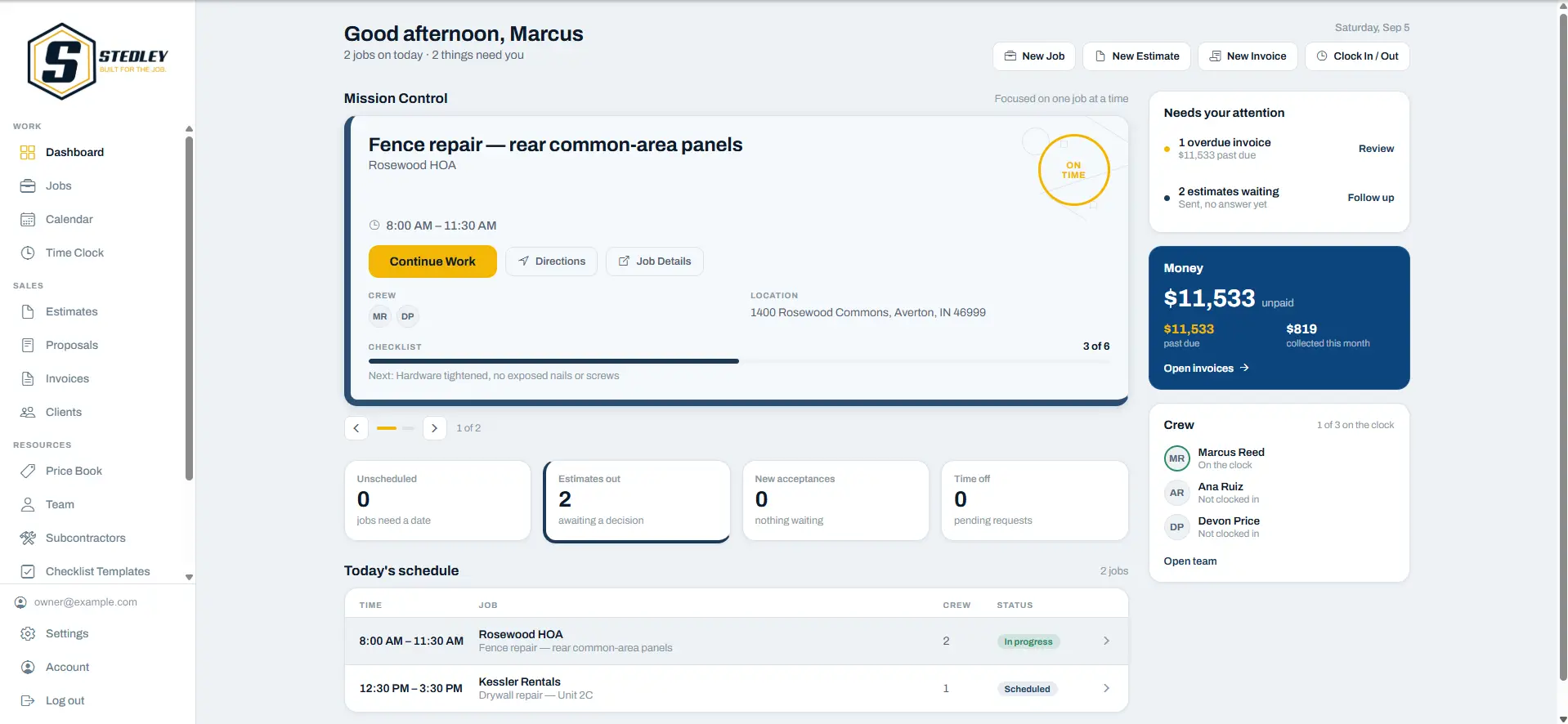
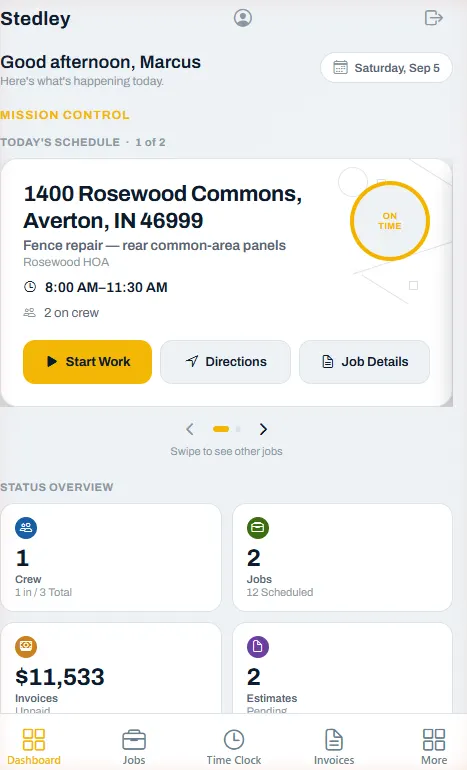
2 Create a job
- Go to the Jobs tab and add a job. Give the job a title, pick the client, and continue to the Schedule Work step.
- Know the date? Choose Schedule now and pick the day on the calendar.
- Don't know the date yet? Choose Leave unscheduled. Then review it and tap Create Job. The job is saved without a date and listed under Unscheduled, so it doesn't get lost.
- A reminder is not the work date. When you leave a job unscheduled you can set an optional reminder to schedule it. That is only a nudge to come back and pick a date — it does not put the work on the calendar.
3 Schedule the work when the date is known
- Open the job and tap Schedule job. You can schedule one day, a date range, or several separate blocks of work.
- Check the calendar. The job should now show on the day you picked, and it is no longer listed as unscheduled.
4 Reuse checklists with templates
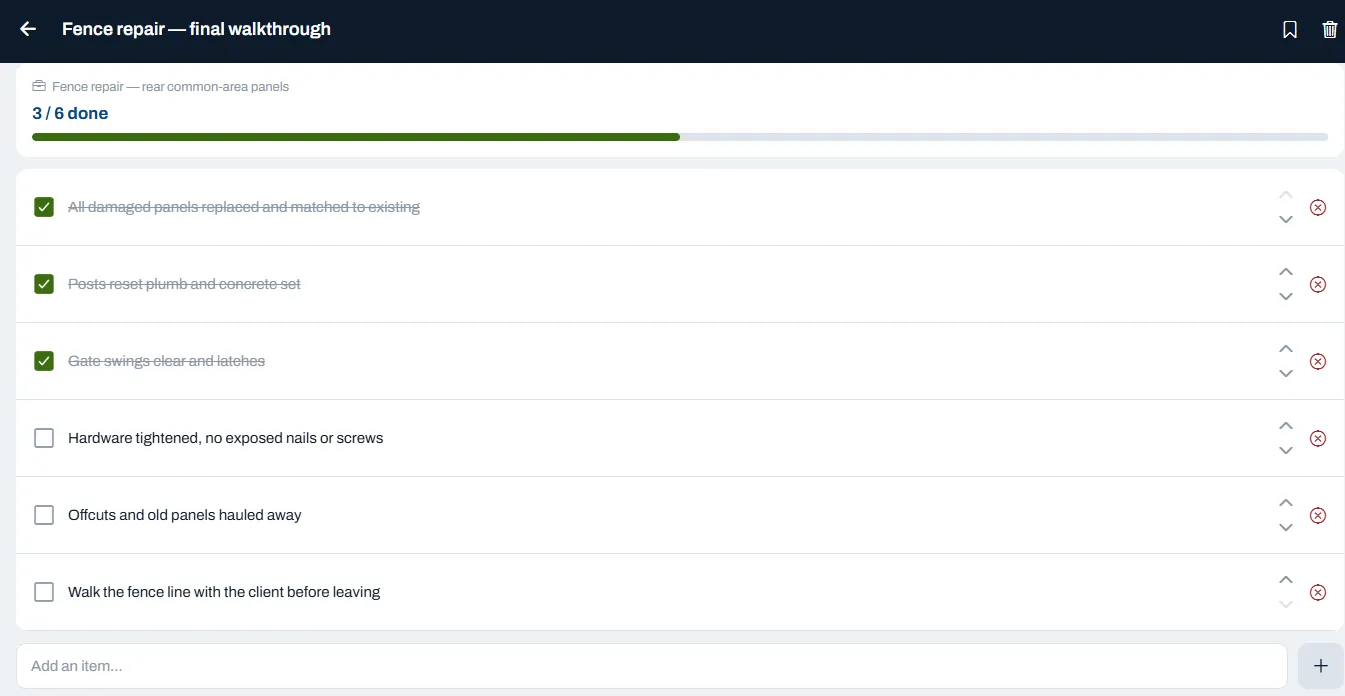
If you walk through the same steps on job after job, save them once as a checklist template and add them to each job that needs them.
- Make the template once. Open Checklist Templates — under More on a phone, or in the sidebar on a computer. Give the template a name, then add its checklist items one at a time.
- Add it to a job. Open the job, tap Add checklist, choose From template, pick the template, and tap Create checklist. Stedley copies its items onto the job as a new checklist, with every item unticked.
- The job gets its own copy. Ticking, adding or removing items on the job's checklist changes that job only. The saved template stays as it was, ready for the next job.
- A job can have more than one checklist. Add as many as the work needs — from templates, or blank ones you make just for that job.
Example: “Paint and Caulk Walls” can be a reusable checklist containing the individual steps for that work. Add that checklist to each applicable job. The same job can also have separate task-specific checklists for other parts of the work.
Your first test job
You do not have to test everything at once. Start by taking one fictional job through the main workflow. It should only take a few minutes.
Set up your company
Add your company name and basic information.
You will know it worked when the dashboard opens with your company information in place.
Create a test client
Use a clearly fictional person or business.
You will know it worked when the client appears in the Clients list.
Create a job
Create a small fictional job for that client.
You will know it worked when the job appears in Jobs and can be opened.
Build and approve an estimate
Add a few simple line items, save the estimate, review the total, and mark it approved.
You will know it worked when the estimate shows its approved status and the next workflow actions become available.
Optional: create a proposal if you want to test the customer-facing presentation document.
Schedule the work
Add a date or visit for the job and confirm it appears on the calendar.
You will know it worked when the job is visible on the correct calendar day.
Track time or an expense
Clock some test time or add a small fictional expense or receipt.
You will know it worked when the new record appears in the correct section.
Create an invoice
Create an invoice from the approved estimate or job and review the totals.
When you finish, think about what felt easy, what felt confusing, and anything that took more taps than expected — then tell us below.
Send us feedback
Honest feedback is the most useful thing you can give us — including anything that was confusing or took longer than it should. A problem, an idea, or just how it felt to use: all of it helps.